


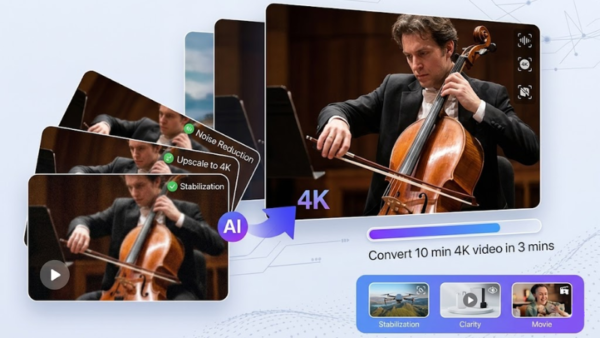
Low-quality videos are still common. Old recordings, compressed uploads, and mobile clips often look soft or pixelated on modern screens. HD video converter apps help bridge this gap.
Their GOAL stays simple. Take low-quality video and turn it into something sharper and more usable.
They improve resolution. They also help with reducing noise, and making footage clearer and easier to watch. Because of how simple they are to use, HD Video Converter tools are now common among creators, marketers, and everyday users.
The Shift Toward Automated Visual Restoration
In earlier years, video conversion meant manual work with codecs and bitrate settings. It needed technical know-how and took time to get right. That process has changed.
An HD video converter app now does more than change file formats. It improves the actual visual quality inside the video. This matters in e-commerce and brand work, where unclear footage can affect how people view a product or service.
Cloud processing now handles most of the heavy work behind the scenes. It rebuilds pixel detail without pushing demand onto the user’s device. Marketers can update old campaign videos or clean up raw phone footage in a short time without extra setup.
Key Tools for High-Definition Enhancement
The current market offers a variety of specialized applications. Each serves a different niche, from quick social media edits to deep archival restoration.
1. Vmake HD Video Enhancer
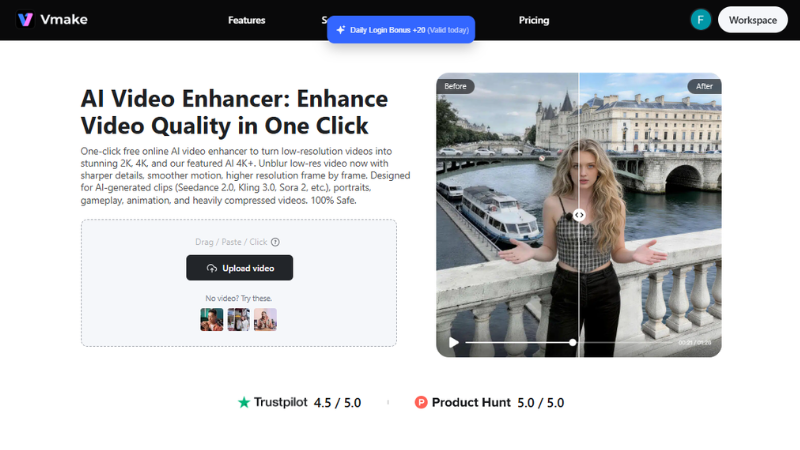
Vmake has solidified its spot as a top-tier video enhancer for 2026. It keeps the process simple from start to finish. Once you’ve uploaded your file, the tool handles everything on its own. So, there’s no need for editing experience or complex settings.
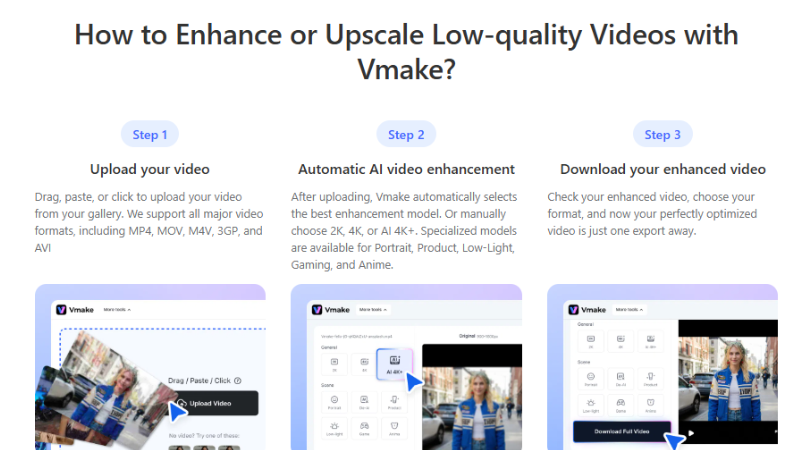
This video enhancer fits into modern content workflows where volume and consistency matter. Creators who produce daily videos or manage multiple projects can use it to upgrade footage without slowing production. The AI processing helps keep results steady across different types of videos, which reduces the need for repeated manual adjustments.
| Pros | Cons |
| Simple workflow with no learning curve | Limited manual editing control |
| Fast HD conversion using AI | |
| Good for ads and social content | |
| Works on web and mobile |
Vmake works well for users who want quick results. It removes editing steps and focuses on output quality. Other tools give more control, but they need more time and effort to reach the same level of improvement.
2. AVCLabs Video Enhancer AI
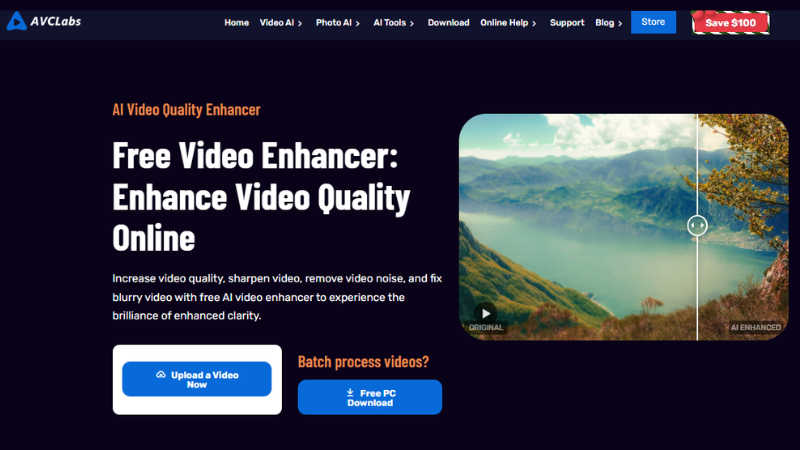
AVCLabs is built for the deep-restoration. It goes beyond basic conversion by using multi-frame AI to “fill in the blanks” of low-res video. It’s particularly effective at bringing clarity back to faces and sharp lines in old recordings. It’s professional restoration made easy, running straight from your browser so you can upgrade your archives on the fly.
| Pros | Cons |
| Exceptional detail recovery for very old files | Slower processing speeds |
| High temporal consistency to prevent flickering | Paid plans can be expensive for regular use |
| Supports resolutions up to 8K |
AVCLabs works well for detailed restoration tasks. But it leans toward users who are comfortable with longer processing times. Vmake stays more direct and fast, which makes it a better fit for quick HD improvements without dealing with heavier setups.
3. Wondershare UniConverter
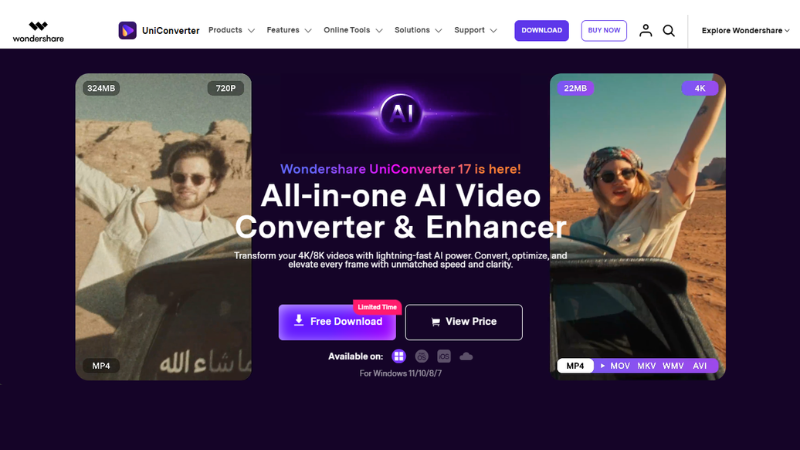
UniConverter is a versatile tool known for its high-speed conversion technology. It is a practical solution for users who handle large batches of files and need to switch formats while maintaining HD standards. Beyond simple conversion, it includes a variety of other utility tools.
| Pros | Cons |
| Extremely fast conversion for large file batches | AI enhancement features are secondary to its conversion focus |
| Includes screen recording and compression tools | Interface can feel cluttered with many features |
| Supports various file formats |
UniConverter works well as an all-in-one online converter. Especially for users who manage heavy media files. Still, its focus is spread across many functions. That makes HD improvement less direct. Vmake stays more focused on video quality enhancement, which gives it a simpler and more targeted workflow for fast HD results.
Which One Should You Use? Quick Comparison
This breakdown shows the main differences between the tools discussed so you can pick the one that works best for your workflow.
| Feature | Vmake HD Converter | AVCLabs Enhancer | UniConverter |
| Primary Platform | Cloud / Web Browser | Windows / Mac | Windows / Mac |
| Best For | Marketing & E-commerce | Archival Restoration | High-Volume Batching |
| AI Focus | Automated video enhancer | Deep Pixel Reconstruction | Speed & Format Utility |
| Learning Curve | Low (Minimalist) | High (Technical) | Medium (Feature-rich) |
| Speed | Very Fast (Cloud-based) | Slow (Hardware-intensive) | Fast |
When HD Video Converter Apps Are Useful
These tools are helpful in many everyday situations. They improve older content and make it usable again.
- Old personal videos
- Social media uploads
- Product marketing clips
- Compressed files from messaging apps
- Low-quality phone recordings
They help bring outdated content closer to modern standards.
What to Expect From These Tools
HD conversion improves clarity, but it does not recreate missing information perfectly. Results depend on the original video.
Good tools:
- Improve sharpness
- Reduce noise
- Enhance edges
- Increase resolution
Poor input limits output quality, no matter which app is used.
Best Practices for Achieving HD Results
Getting solid HD results isn’t just about picking the right tool. The final output depends a lot on how the source file is treated before conversion. Always use the original video when it’s available. Avoid clips that have already been shared through messaging apps or social platforms since compression strips away fine detail that can’t be fully recovered later.
Export settings matter just as much. Use modern codecs like H.264 or H.265 when exporting the final HD file. These formats keep the video clear while controlling file size. So the output doesn’t feel heavy or compressed.
Bitrate also plays a key role. If it is set too low, the shift from SD to HD loses impact. A range of 8–10 Mbps for 1080p usually keeps things stable and visually clean.
Aspect ratio often gets overlooked. Older videos use 4:3, while modern screens use 16:9. Stretching the frame can distort faces and objects. Keeping the original ratio and adding side bars helps maintain proper proportions and a natural look.
Final Thoughts
HD video converter apps have made video improvement much easier. They remove the need for manual editing in many cases. Some tools focus on control. Others focus on speed. A few try to balance both.
Vmake stands out for users who want fast HD improvement without editing complexity. It works best for social media content, ads, and quick video upgrades where time matters more than manual control.